
Slide Generation
Slide mode can automatically generate complete presentation slides using AI, with style analysis and page-by-page generation.
Interface Overview
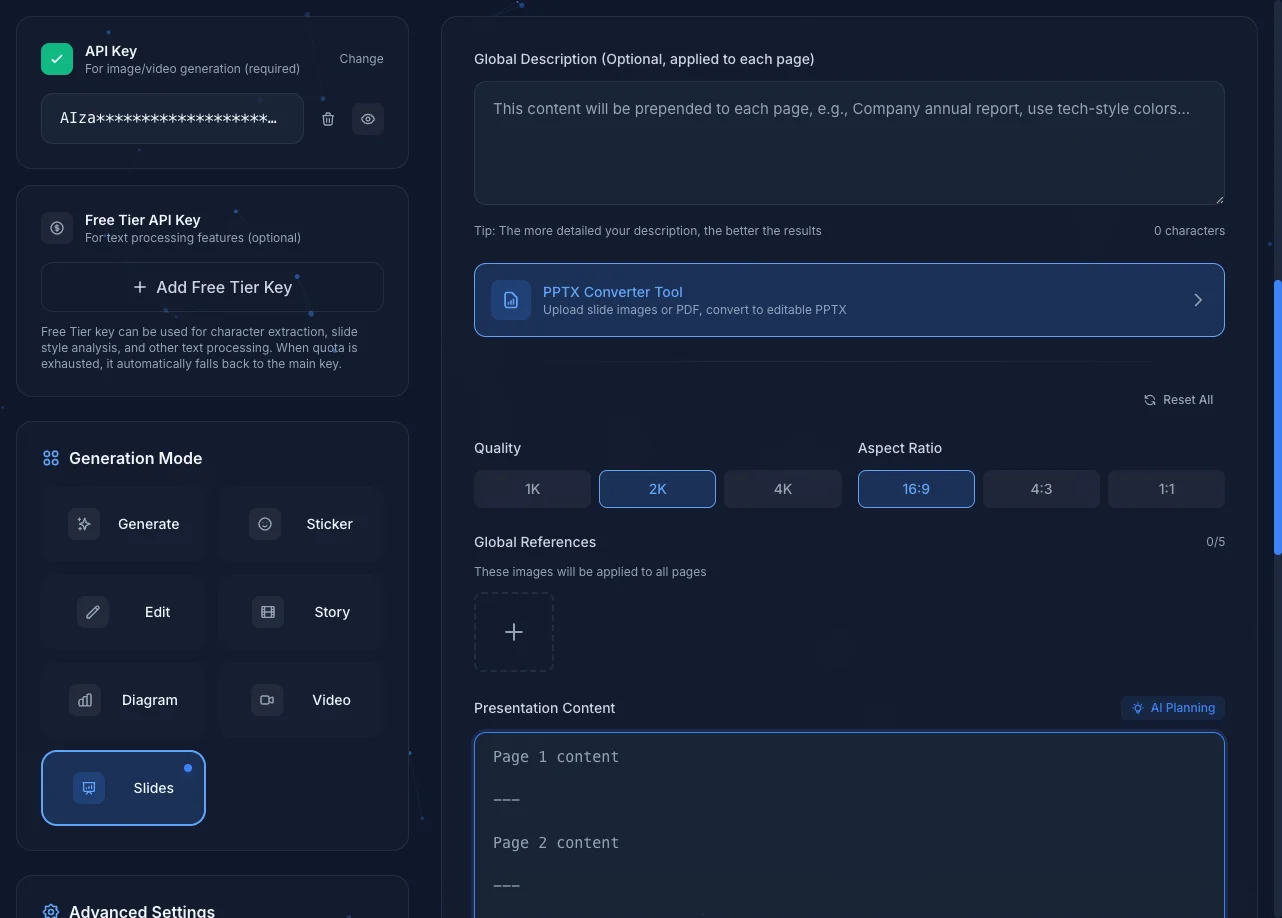
Slides mode offers two main approaches: plan the content yourself, or let AI plan it for you.
Scenario 1: Plan Content Yourself
When you already know what each page should contain, you can enter content directly in the "Presentation Content" area, using --- (three dashes) to separate different pages.
Example: Creating a FIDO Passkey Introduction
Let's create a 3-page presentation to introduce FIDO Passkey:
Cover: What is FIDO Passkey?
Subtitle: A more secure and convenient passwordless login method

---

How Passkey Works
- Uses public key cryptography
- Private key stored securely on device
- Verified through biometrics (fingerprint, Face ID)
- No need to remember complex passwords

---

Advantages of Passkey
- Prevents phishing: private key never leaves the device
- Cross-device sync: syncs via iCloud/Google account
- Better user experience: one-tap login, no password needed
The system will automatically split this into three pages based on ---, showing "3 pages" at the bottom.
Steps
- Select "Slides" mode
- Enter content for each page in "Presentation Content", separated by
---(max 30 pages) - (Optional) Enter "Global Description" - background context about your presentation that helps AI understand the overall theme (this text won't appear on slides)
- Set quality (1K, 2K, 4K) and aspect ratio (16:9, 4:3, 1:1)
- Choose design style (AI Analysis or Manual Input)
- Click "Generate"
Global Description
Use Global Description to provide context like "This is an internal tech sharing session for engineers" or "Target audience is marketing team, prefer business style". This helps AI generate more appropriate visuals without cluttering individual slide content.
Scenario 2: Let AI Plan for You
When you have a long document (like official documentation, technical specs, meeting notes) to convert into slides, you can use the "AI Planning" feature to let AI analyze the content and plan key points for each page.
About API Key Usage
AI Planning is a text processing feature that prioritizes using your Free Tier API Key (if configured). It only switches to your paid key when the Free Tier quota is exhausted. See API Key Management for details.
Example: Converting FIDO Official Documentation to Slides
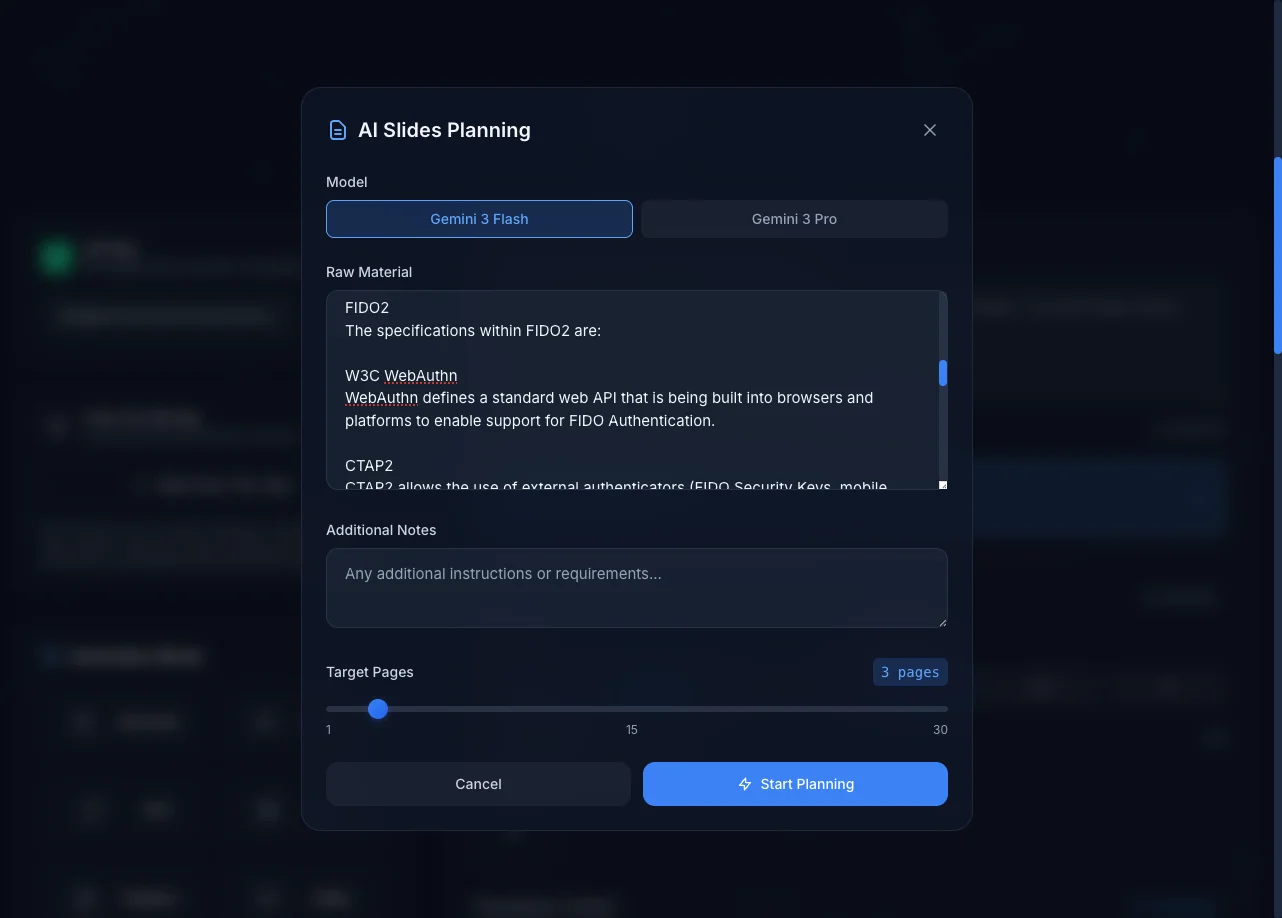
- Click the "AI Planning" button next to "Presentation Content"
- Paste the full document content in the popup (e.g., FIDO Alliance technical whitepaper)
- Click "Start Planning"
- AI will analyze and split the content into multiple slide pages
Tip
AI Planning works best for longer documents. If you only have brief bullet points, Scenario 1 (planning yourself) is more efficient.
Generation Flow
Slides mode uses a sequential generation strategy:
- Generate first page (cover) first
- Use first page as reference to maintain style consistency
- Generate subsequent pages in order
This ensures visual style consistency throughout the presentation.
Page Editing & Selective Regeneration
After generation, if you only need to adjust a few pages, there's no need to regenerate everything.
Inline Editing on Page Cards
Each page card has an edit button (✏️). Click it to directly modify that page's content. Changes automatically sync back to the "Presentation Content" textarea above.
Likewise, if you edit content in the textarea above, the corresponding page card below will also update.
Change Detection
The system automatically tracks three types of changes per page:
| Change Type | Trigger |
|---|---|
| Content | Modified page text content |
| Style | Modified page style guide or global style |
| Narration | Modified narration script |
Modified pages display a yellow border and a "Modified" badge. If you revert content back to what it was when generated, the modification marker automatically disappears.
Selective Regeneration
When pages are marked as modified, the generate button area splits into two buttons:
- Generate Modified Pages (primary): Only regenerate modified pages, showing a detailed breakdown (e.g., "slides p.2, 5, audio p.3")
- Regenerate All (secondary): Regenerate all pages from scratch
Save API Quota
If you only modified 1 page's text, "Generate Modified Pages" will only use 1 API call instead of 15.
Viewing Page Images
Click a page card's thumbnail to open the lightbox for a full-size view, with narration audio playback and transcript panel support.
Design Style
In the "Design Style" section, you can choose from two methods to set your presentation's visual style:
AI Analysis
Click "AI Analysis", then you can:
- Select analysis model: Gemini 3 Flash (faster) or Gemini 3.1 Pro (more accurate)
- Enter style preferences (optional): Describe what you want or don't want, e.g.:
- ✓ Want: Modern minimalist, blue color scheme
- ✗ Don't want: Gradient backgrounds, excessive decorations
- Click "Analyze & Plan Style"
AI will analyze your presentation content and style preferences to generate suitable design style suggestions:
- Color scheme: Primary, secondary, background colors
- Layout: Title position, content blocks, margins
- Typography: Title size, body text size
- Visual elements: Chart style, icon style
You can edit and adjust the AI's suggestions after they're generated.
About API Key Usage
Style analysis is a text processing feature that prioritizes using your Free Tier API Key. See API Key Management for details.
Manual Input
If you already have a clear style in mind, choose "Manual Input" and directly describe your desired design style:
Modern minimalist style with navy blue and white background,
sans-serif fonts, clean and organized layout
Global Style vs Page Style
Presentation styles work at two levels:
- Global Style: Base design style applied to all pages
- Page Style Guide: Each page can have additional style adjustments
For example, you can set the global style to "professional business" but specify "use blue-green data visualization" for chart pages.
Tip
If a page has special content (charts, quotes, timelines), you can specify custom styling in that page's "Page Style Guide" to help AI handle it better.
Global Reference Images
You can upload up to 5 reference images that will be applied to all page generations, helping AI better understand your desired visual style or brand elements.

Prompt Structure (Technical Details)
The system combines your inputs into a structured prompt sent to AI for image generation. Here's the actual prompt structure for each page:
# Slide Generation Task

Generate a presentation slide image for **Page {number} of {total}**.

## PRESENTATION OVERVIEW
{Global Description}

## DESIGN STYLE GUIDE

### Global Style
{Global Style}

### Page-Specific Adjustments
{Page Style Guide}

## SLIDE CONTENT
{Page Content}

## DESIGN REQUIREMENTS
(System-added design guidelines)

## STRICT CONSTRAINTS
(System-added constraints)
This structure ensures:
- Global Description provides background context (not displayed on slides)
- Global Style maintains visual consistency across all slides
- Page Style Guide allows flexibility for individual pages
- Page Content is the actual text rendered on the slide
Page Types
Since this is an image generation model, the types of pages you can create are only limited by your imagination. Here are some common examples:
| Type | Description |
|---|---|
| Cover | Title, subtitle, date |
| Table of Contents | Presentation outline |
| Content Page | Title + bullet points |
| Chart Page | Data visualization |
| Comparison Page | Two or multi-column comparison |
| Timeline | History, milestones |
| Quote Page | Famous quotes, key takeaways |
| Ending Page | Summary, Q&A, contact info |
As long as you can clearly describe the layout in your prompt, the model can generate it for you.
Prompt Tips
Specify Content Clearly
Page 3: Quarterly Performance
- Q1: Revenue $1.2M, growth 15%
- Q2: Revenue $1.35M, growth 12%
- Q3: Revenue $1.28M, decline 5%
- Q4: Revenue $1.5M, growth 17%
Use bar chart visualization
Specify Style Preferences
Overall style: Professional business
Colors: Navy blue primary, white background
Avoid: Excessive decoration, cartoon elements
Narration Audio
Slides mode supports generating narration audio (Text-to-Speech) for each page, ideal for creating narrated presentations or pre-recorded demos.
Enabling Narration
- After completing style analysis and confirming, the "Narration" section will appear
- Toggle "Enable Narration" on
- Configure language, speaker mode, conversation style, etc.
Speaker Modes
| Mode | Description |
|---|---|
| Single | One speaker monologue |
| Dual | Two speakers in conversation (discussion, critical, or debate style) |
Generation Flow
- Generate Scripts: AI automatically writes narration scripts for each page based on slide content
- Review/Edit: Expand each page's script to fine-tune
- Generate Audio: When you click "Generate", image generation and TTS audio generation run in parallel
Narrative Structure
AI automatically arranges a narrative arc: the first page includes a cohesive introduction (greeting, topic overview), and the last page includes a closing statement (summary, takeaway). For single-page presentations, both opening and closing are included on the same page.
Playback & Download
- Live Preview: A mini audio player appears below each image card in the generation results
- Lightbox Playback: Click an image to open Lightbox, with an audio player at the bottom
- Transcript Panel: Click the transcript button in the Lightbox toolbar (or press
T) to open a floating transcript panel that auto-updates as you navigate pages. In dual-speaker mode, speakers are color-coded. The panel supports drag to reposition and top-right corner drag to resize; position and size are remembered automatically - Download Options:
- ZIP download automatically includes audio files (
narration-1.mp3,narration-2.mp3…) - Lightbox download menu has a "Narration Audio" section for downloading current page or all audio
- MP4 download merges all page images and narration audio into a single video (with quality selection; requires WebCodecs support; not available in Firefox)
- PDF download contains images only (no audio)
- ZIP download automatically includes audio files (
Audio Format
Audio is stored in MP3 format by default (64kbps). If MP3 encoding fails, it automatically falls back to WAV format without affecting playback.
About API Key Usage
Script generation and TTS audio generation are text processing features that prioritize using your Free Tier API Key. See API Key Management for details.
Generated Results
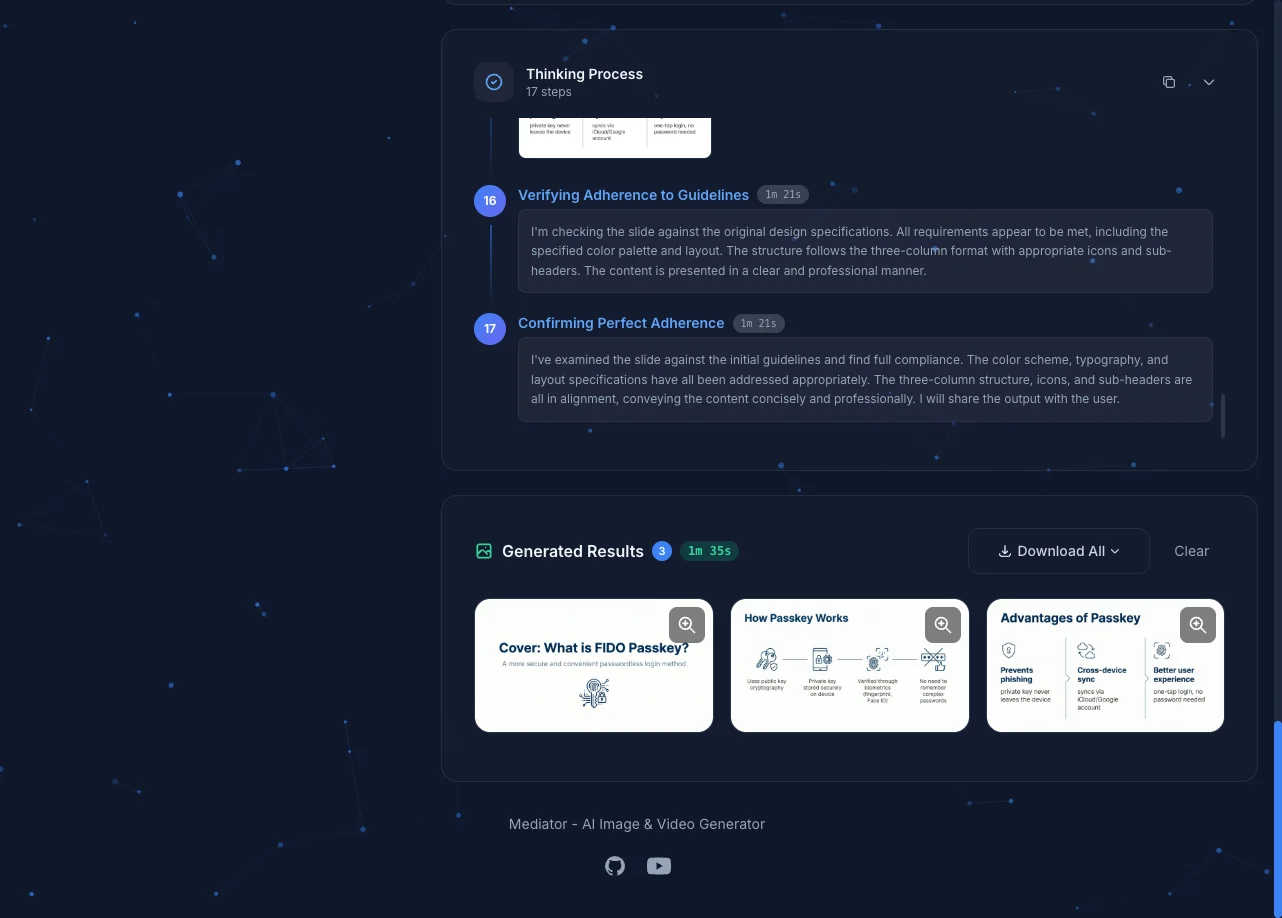
After generation, each image is displayed in the preview area. If narration is enabled, a mini audio player appears below each image.
Export Options
After generation, you can:
- Download as ZIP (all page images + narration audio)
- Download as PDF (images only)
- Download as MP4 video (images + narration audio merged into a video, using WebCodecs H.264/AAC encoding)
MP4 Export
MP4 export requires browser support for the WebCodecs API. Currently supported in Chrome and Edge; not available in Firefox (the button is automatically hidden).
When you click the MP4 button, a settings dialog appears:
- Quality: Low (4 Mbps), Medium (8 Mbps, default), High (12 Mbps)
- Resolution: 720p / 1080p / 1440p / 4K available depending on source image dimensions
- Narration Speed: 1x–4x adjustment with pitch preservation. Includes a slider, number input, and preset buttons (1 / 1.25 / 1.5 / 1.75 / 2 / 3x)
All settings are remembered for next time. Pages without narration are filled with 5 seconds of silence; pages with narration last as long as the (speed-adjusted) audio.
Need Editable PPTX?
If you need to convert your slides to editable PPTX format, use the Slide Conversion Tool.
Difference from Slide Conversion
| Feature | Slide Generation | Slide Conversion |
|---|---|---|
| Input | Text description | PDF file |
| Purpose | Create slides from scratch | Convert existing PDF to editable format |
| AI Role | Generate content and design | OCR recognition and background removal |
Next Steps
- Slide Conversion - Convert PDF to PPTX
- Diagram Generation - Generate charts for slides
- Image Generation - Generate illustration assets