
Smart Search
As your history grows, Smart Search helps you quickly find past generation results. It combines keyword matching with semantic understanding, so you can find relevant records even when you don't remember the exact prompt.
Opening Search
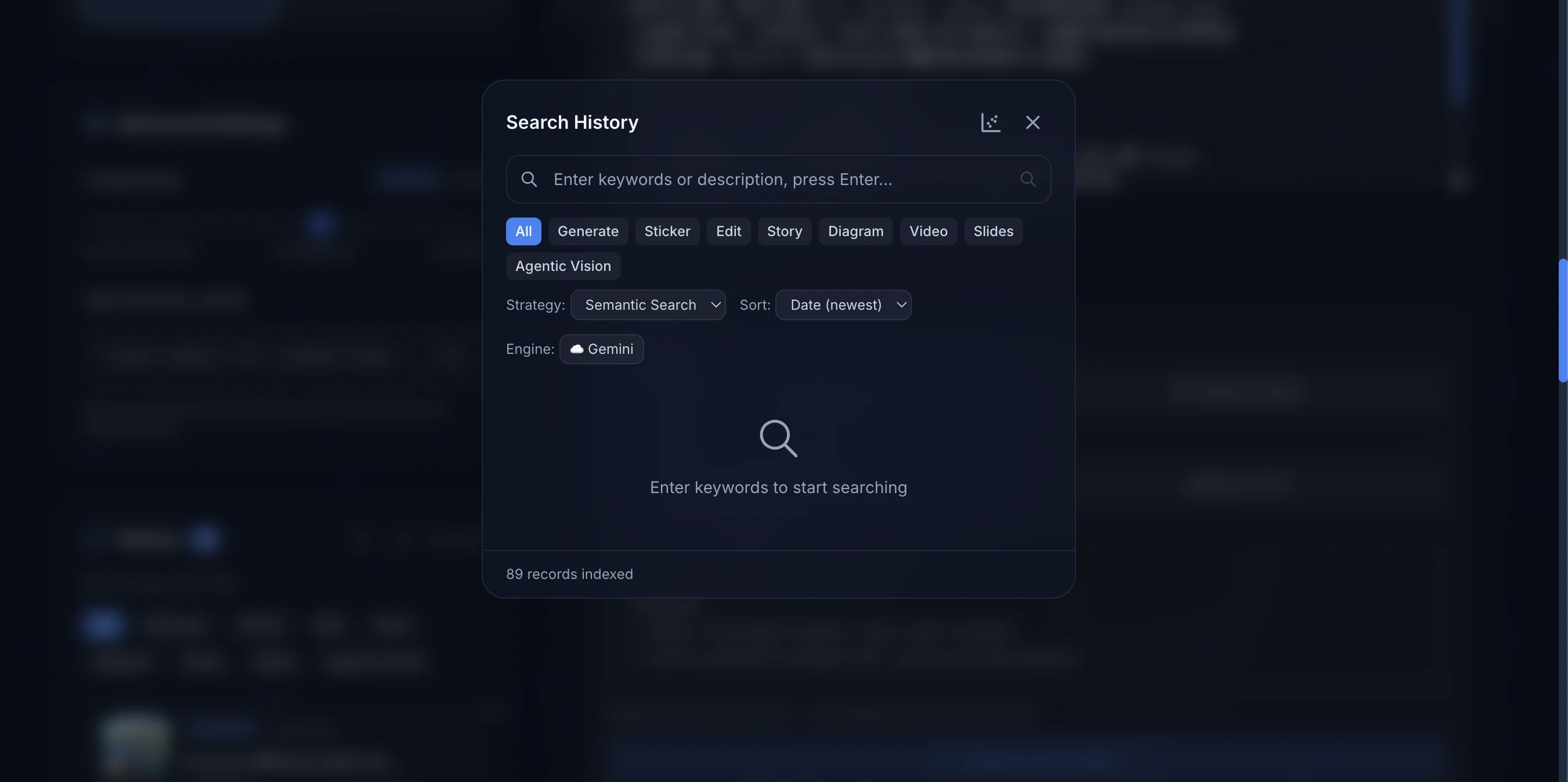
Click the search button (🔍) above the history area to open the search panel.
Basic Usage
- Type a keyword or description in the search box
- Results appear in real time
- Click a result to preview it in the lightbox
Search Results
Each search result includes:
| Item | Description |
|---|---|
| Thumbnail | Preview of the generated result |
| Mode Tag | Generation mode (Generate, Sticker, Video, etc.) |
| Time | When it was generated |
| Snippet | Matching prompt excerpt with highlighted keywords |
Search Strategies
Three search strategies are available for different use cases:
| Strategy | Description | Best For |
|---|---|---|
| Hybrid | Combines keyword + semantic search (default) | Most situations |
| Semantic | Pure meaning-based search, no exact match needed | "Find that image with a sunset" |
| Fulltext | Pure BM25 keyword matching | Searching for specific terms or names |
Tip
Hybrid search is the default strategy and works best in most cases. If your description is vague, try switching to semantic search.
Embedding Engine
The search system supports two embedding engines for generating semantic vectors:
| Engine | Model | Dimensions | Description |
|---|---|---|---|
| ☁️ Gemini | Gemini Embedding API | 768-dim | Cloud API, higher quality, consumes API quota |
| 📱 Local | multilingual-e5-small | 384-dim | In-browser inference, free but requires model download (~33MB) |
First-Time Setup
When you first open the search panel, the system asks you to choose an embedding engine:
- Gemini — Uses the Gemini Embedding API for semantic encoding. Higher quality, but consumes a small amount of API quota ($0.15 / million tokens)
- Local — Downloads and runs a Transformers.js model in the browser. Completely free; first use requires downloading ~33MB model file
You can switch engines at any time from the search panel. After switching, the system automatically backfills embedding vectors for already-indexed records using the new engine.
Note
Index data for each engine is stored independently. Switching engines does not delete existing indexes — you can switch back anytime.
Privacy Notice
When using the Gemini engine, your prompt text is sent to the Google API for embedding encoding. If you're using a Free Tier API Key, Google may use your input data for model training. For privacy-sensitive use cases, consider using the Local engine or a paid API Key.
Mode Filter
You can filter search results by generation mode:
- All
- Generate
- Sticker
- Edit
- Story
- Diagram
- Video
- Slides
- Agent
Sort Options
Search results support three sort orders:
| Sort | Description |
|---|---|
| Relevance | Sort by match quality (default) |
| Newest First | Sort by generation time, descending |
| Oldest First | Sort by generation time, ascending |
Real-Time Sync
The search index automatically stays in sync with your history:
- New records — Automatically indexed after generation
- Deleted records — Removed from the index when deleted
- Imported records — Automatically indexed after import
- Clear all — Index cleared when history is cleared
You don't need to manage the index manually — the system handles it in the background.
Embedding 3D Explorer
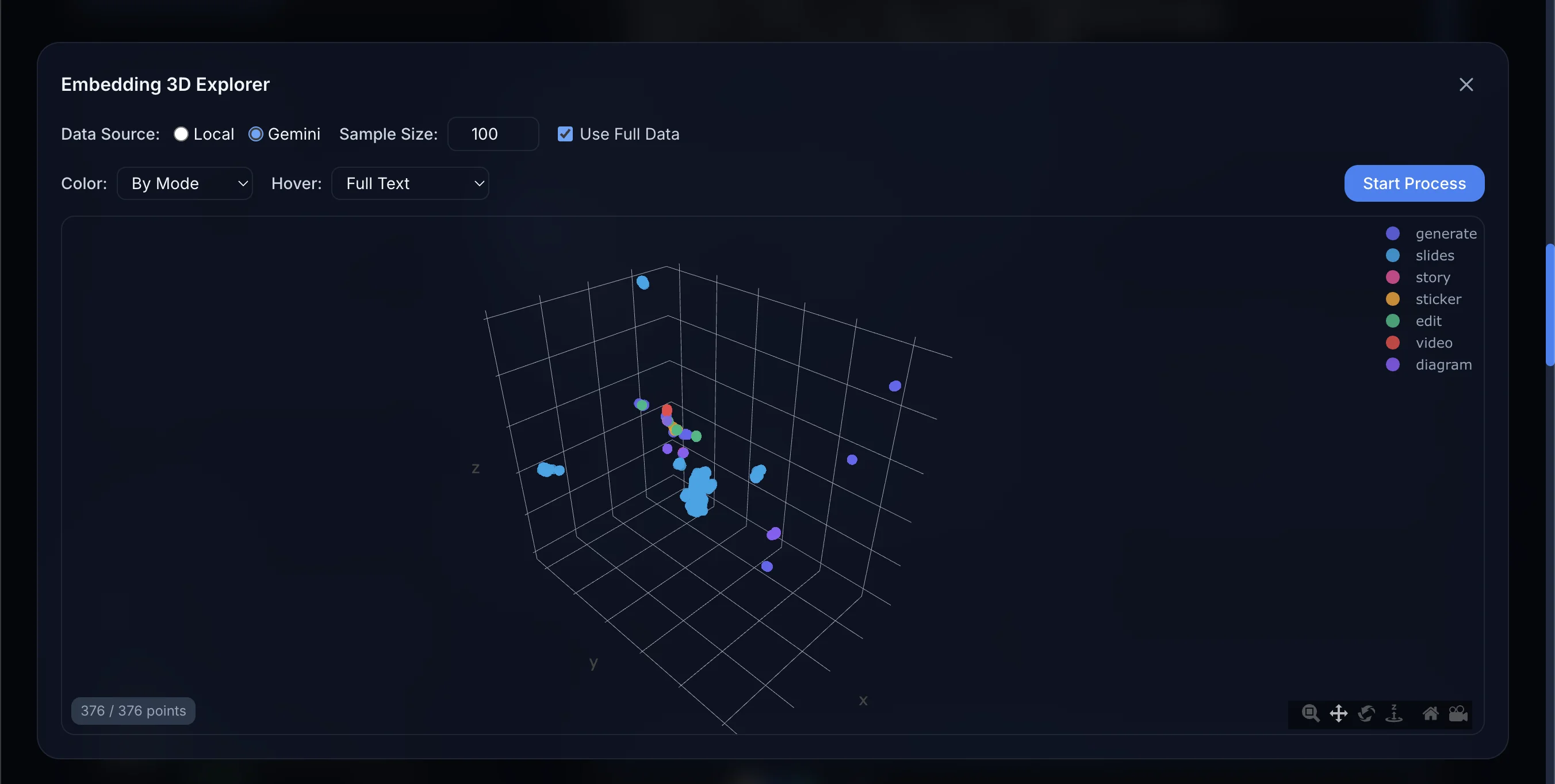
The scatter chart button in the top right of the search panel opens the Embedding 3D Explorer, which visualizes all indexed record embedding vectors as an interactive 3D scatter plot.
Features
- Data source selection — View embedding data from either the Local or Gemini engine
- Sampling control — Set sample size or use full data
- Color mode — Color by generation mode (each mode gets a different color), by record (each historyId distinguished with a 20-color palette), or single color
- Mode filter — Multi-select chip buttons to filter data points by generation mode, focusing on specific modes
- Hover text — Configure what shows on mouse hover (ID only, truncated text, full text)
- 3D interaction — Rotate, zoom, and pan to explore vector space distribution
How to Use
- Open the search panel
- Click the scatter chart icon in the top right
- Choose a data source (Local / Gemini)
- Click "Start Process"
- The system runs UMAP dimensionality reduction, mapping high-dimensional vectors (384/768-dim) to 3D
Tip
Points close together represent semantically similar records. By coloring by mode, you can observe whether different generation modes form clusters in vector space.
Preference Memory
Your search preferences are automatically saved, including:
- Last selected mode filter
- Last used search strategy
- Last used sort order
These settings are restored the next time you open the search panel.
Multilingual Support
The search engine is specially optimized for CJK (Chinese, Japanese, Korean) text, with proper tokenization for accurate results. English and other languages are fully supported as well.
Next Steps
- History - Manage all generation records
- Character Library - Create characters from history