
Character Library
Character Library lets you save and reuse character settings, ensuring consistency across multiple generations.
Basic Concept
When you need to generate the same character multiple times (e.g., in story mode), Character Library can:
- Store character appearance descriptions
- Store character reference images
- Auto-inject character info during generation
Creating Characters
There are two ways to create characters:
Method 1: From Sticker Mode
After generating character stickers in "Sticker" mode, click the extract button on the sticker to bring it into the Character Extractor for extraction.
Method 2: Using Character Extractor Directly
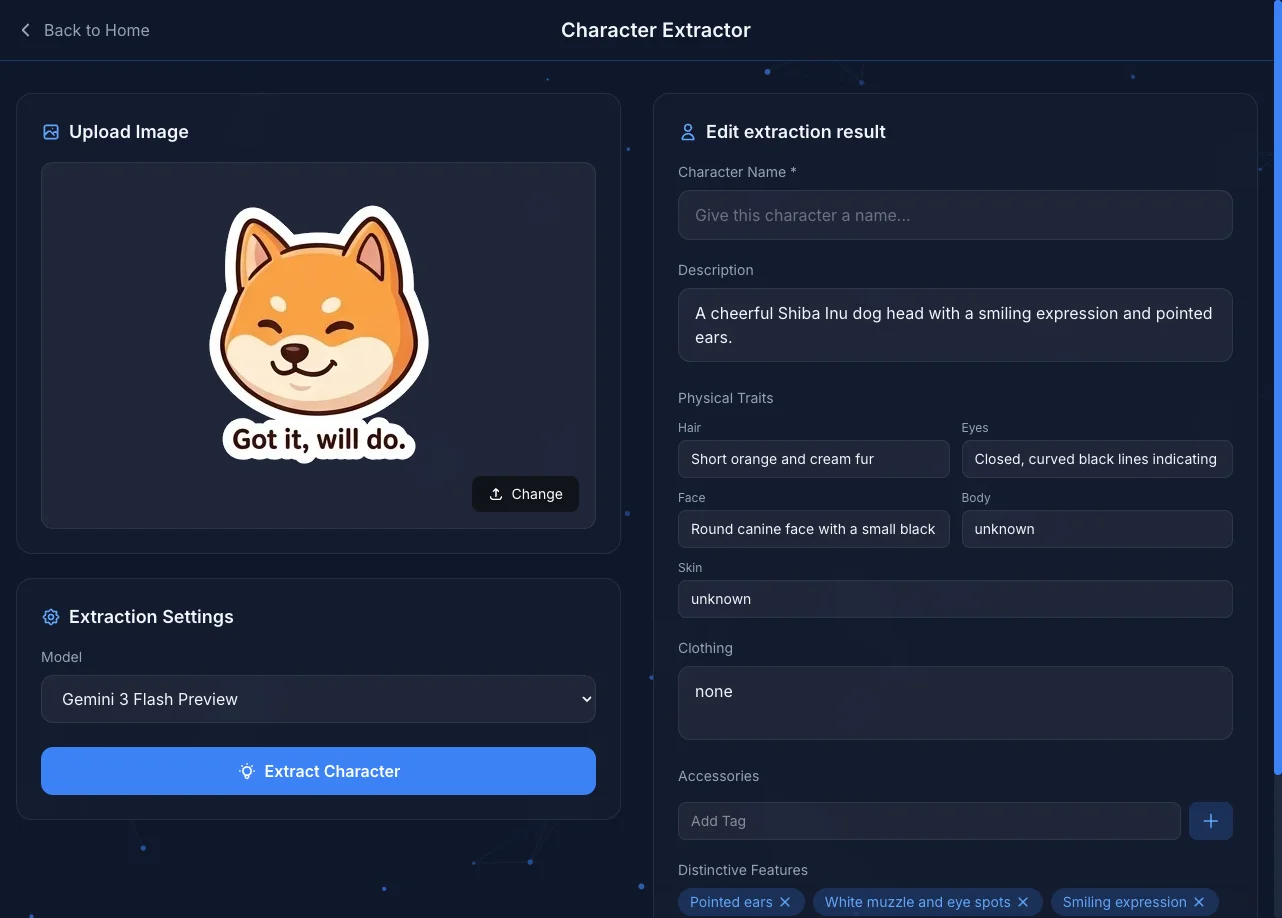
- Go to the "Character Extractor" page (click the "+" button in Character Library)
- Upload a character image
- Click the "Extract Character" button
- AI will automatically analyze and list the character's features:
- Description: Overall description of the character
- Physical Traits: Hair, eyes, face, body type, skin
- Clothing: What the character is wearing
- Accessories: Glasses, hats, and other accessories
- Distinctive Features: Unique characteristics of the character
- Name your character and save
About API Key Usage
Character extraction is a text processing feature that prioritizes using the Free Tier API Key. See API Key Management for details.
Character Information
Each character contains the following information:
- Name: Character's identifier name
- Reference Image: The original image used for extraction (stored in OPFS)
- Description: Overall description of the character
- Physical Traits: Hair, eyes, face, body type, skin
- Clothing: Description of what the character is wearing
- Accessories: Glasses, hats, and other accessories
- Distinctive Features: Unique characteristics of the character
Using Characters
Select During Generation
- Select a character from "My Characters" at the bottom of the home page
- The selected character image is automatically added to reference images
- AI will reference the character's appearance features during generation
Use in Story Mode
Story mode is especially suited for Character Library:
- Select character before starting a new story
- Character image serves as reference to ensure consistent appearance
- Each scene will auto-reference character settings
Managing Characters
Edit Character
Click the edit button in Character Library to enter the Character Extractor page for editing:
- Modify character name
- Update description or features
- Replace reference image (re-upload)
Delete Character
Deleting a character also deletes:
- Character data (IndexedDB)
- Reference image (OPFS)
Note
Deletion cannot be undone, please proceed carefully.
Export / Import Characters
Character Library supports exporting character data for backup or sharing with others:
Export:
- Click the menu button (⋮) on a character card
- Select "Export"
- A
.jsonfile will be downloaded containing character data and reference image (Base64 encoded)
Import:
- Click the "Import" button in Character Library
- Select a previously exported
.jsonfile - The character will be added to your library
P2P Sharing
You can share exported character files with friends directly, allowing them to use the same characters without re-extracting.
Storage Location
Character data is stored in the browser:
| Data Type | Storage Location |
|---|---|
| Character Info | IndexedDB |
| Reference Images | OPFS |
Clearing browser data will delete all characters.
Next Steps
- Story Mode - Create stories using characters
- Image Editing - Edit character images