
Slide Conversion
Slide conversion can transform PDFs or images into editable PPTX files with OCR text recognition.
Use Cases
This tool is perfect for converting slides from:
- NotebookLM - Slides generated by Google's AI notebook tool
- Gamma - AI presentation generator
- Canva - Exported PDF presentations
- Screenshots - Any slide screenshots or photos
How to Access
There are two ways to access the "PPTX Converter Tool":
Option 1: From Slides Mode
In "Slides" mode, click the "PPTX Converter Tool" card to enter.
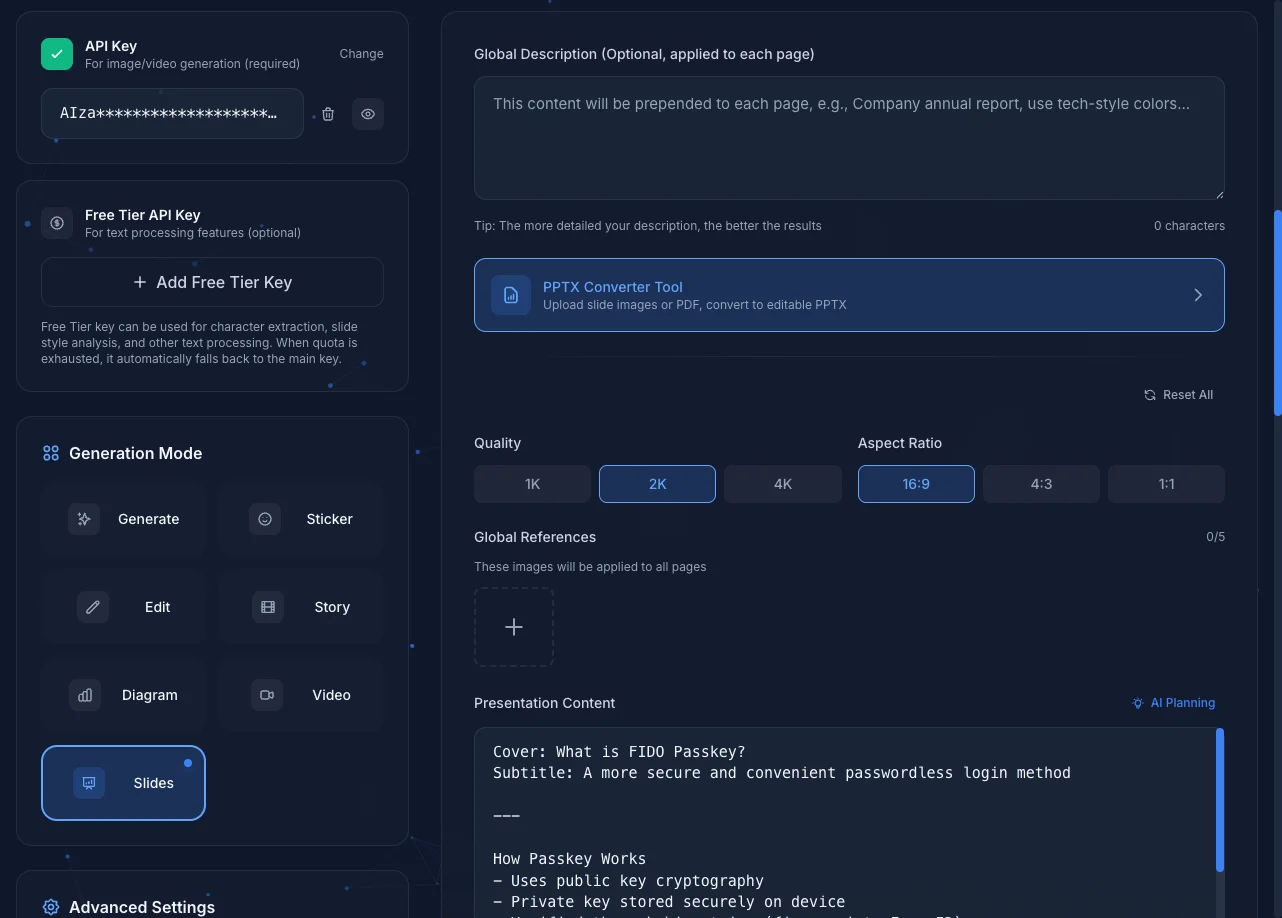
Option 2: From History
Click any image in the history, and you'll see a "Convert to PPTX" button. Clicking it will bring that record's images into the conversion tool.
Interface Overview
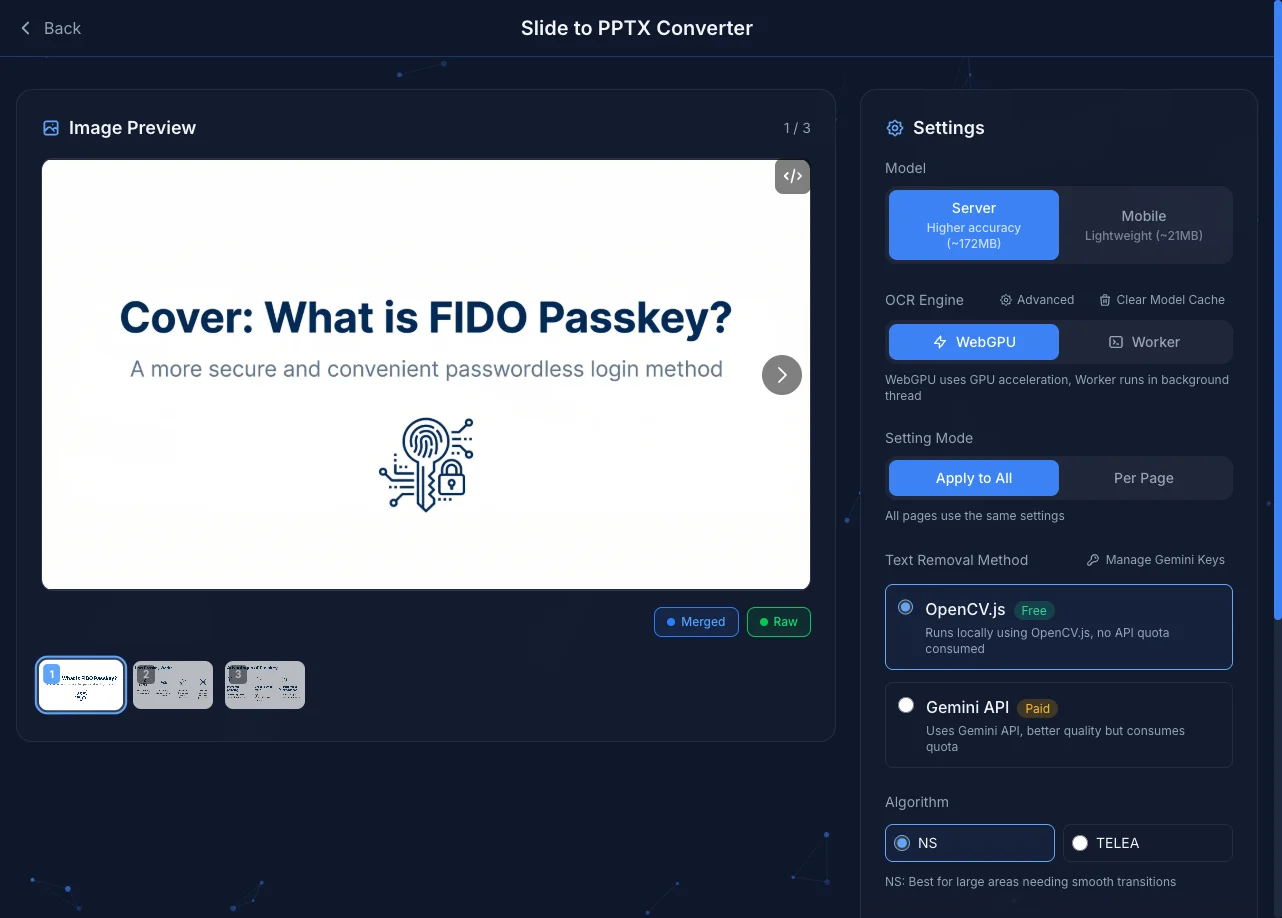
The interface is divided into two main sections:
Image Preview
The left section displays your uploaded slide images. You can navigate through each page. The "Merged" and "Raw" buttons at the bottom toggle between different OCR result display modes.
Settings
The right section provides various conversion settings:
| Setting | Description |
|---|---|
| Model | Choose Server (higher accuracy) or Mobile (lightweight) |
| OCR Engine | WebGPU uses GPU acceleration; Worker runs in background thread |
| Setting Mode | Apply to All or Per Page settings |
| Text Removal Method | OpenCV.js (free) or Gemini API (consumes API quota) |
| Algorithm | Text removal algorithm: NS or TELEA |
Advanced Settings
Click the "Advanced" button next to OCR Engine to adjust detailed OCR parameters such as detection threshold, dilation factor, layout analysis settings, etc.
Once configured, click "Start PPTX Conversion" to begin processing.
Basic Usage
- Upload PDF file or images
- Wait for OCR processing
- Preview and edit results
- Download PPTX file
Processing Flow
1. PDF to Images
First converts each page of the PDF to high-resolution images.
2. OCR Text Recognition
Uses PaddleOCR models for text detection and recognition:
- Text Detection: Locates text positions in the image
- Text Recognition: Converts image text to editable text
- Layout Analysis: Merges nearby text blocks into paragraphs
3. Text Removal
Uses OpenCV.js or Gemini API inpainting algorithm to remove original text from images.
Automatic Fallback
When using Gemini API for text removal, if an API error occurs (such as RECITATION, quota exceeded, etc.), the system automatically falls back to OpenCV.js to continue processing, ensuring the conversion flow doesn't get interrupted.
4. Generate PPTX
Combines processed background images with recognized text into a PPTX file.
OCR Settings
Execution Mode
| Mode | Description | Use Case |
|---|---|---|
| WebGPU | GPU accelerated | Modern browsers, faster |
| WASM | CPU only | Better compatibility |
Model Selection
| Model | Size | Accuracy | Speed |
|---|---|---|---|
| Server | ~172MB | Higher | Slower |
| Mobile | ~21MB | Normal | Faster |
Automatic Fallback
The system has multiple automatic fallback mechanisms:
- GPU Memory Insufficient: When WebGPU runs out of memory, it automatically switches to WASM Worker (CPU mode) to continue processing
- Model Size Fallback: If the device cannot load the Server model, it automatically switches to the Mobile model
Notifications will be displayed during fallback so you know the current execution status.
Advanced Parameters
- Detection Threshold: Adjust text detection sensitivity
- Dilation Factor: Adjust text box size
- Line Spacing Threshold: Affects paragraph merging
Conversion Complete
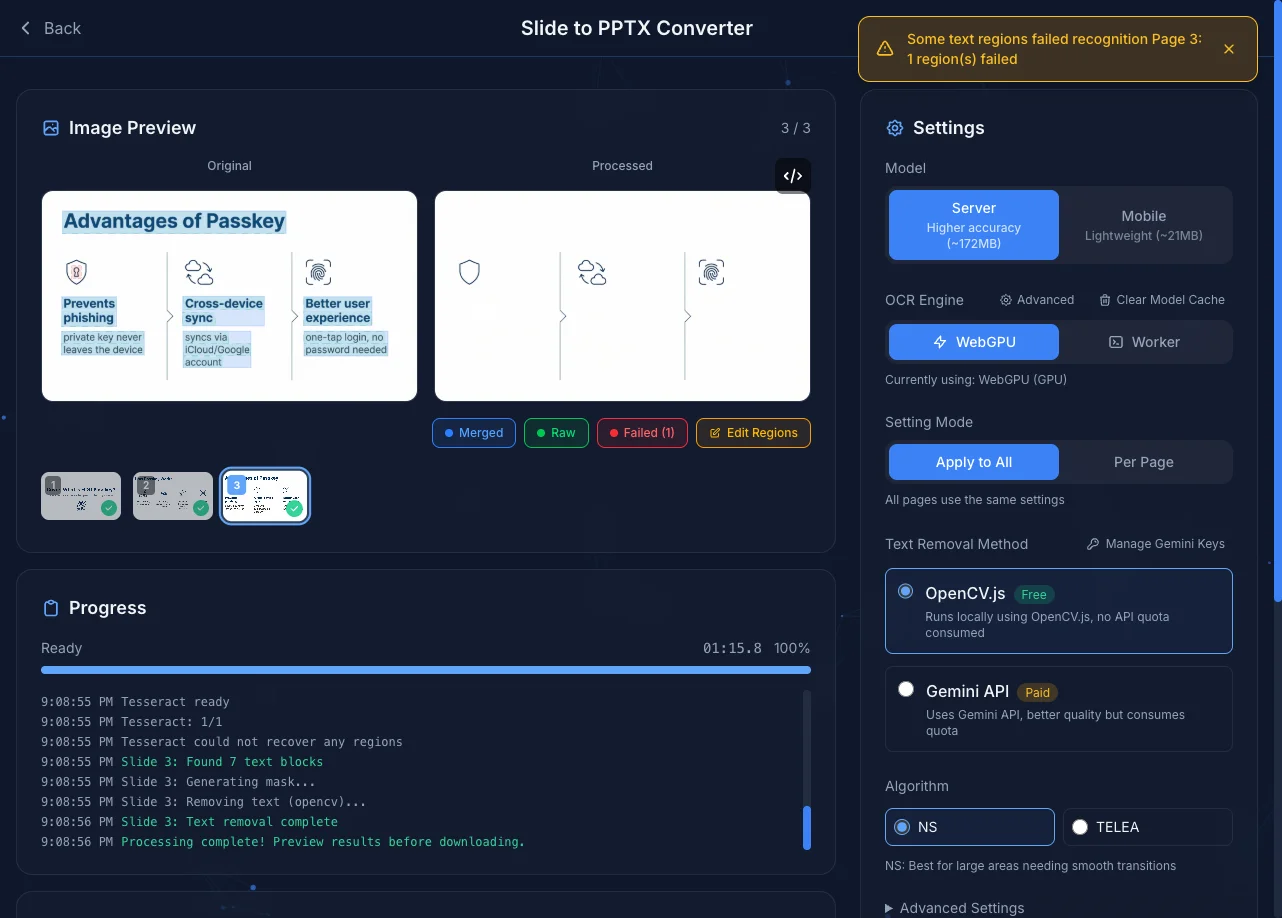
After conversion completes, the interface shows:
- Original: The original image
- Processed: The processed image (text removed)
- Thumbnails: All pages shown at bottom, green checkmark indicates success
Bottom button descriptions:
| Button | Description |
|---|---|
| Merged | Show merged text blocks after layout analysis |
| Raw | Show original OCR detection boxes |
| Failed | Show regions that failed recognition (if any) |
| Edit Regions | Enter edit mode to adjust text regions |
Edit Mode
Click "Edit Regions" to enter edit mode and fine-tune the OCR results.
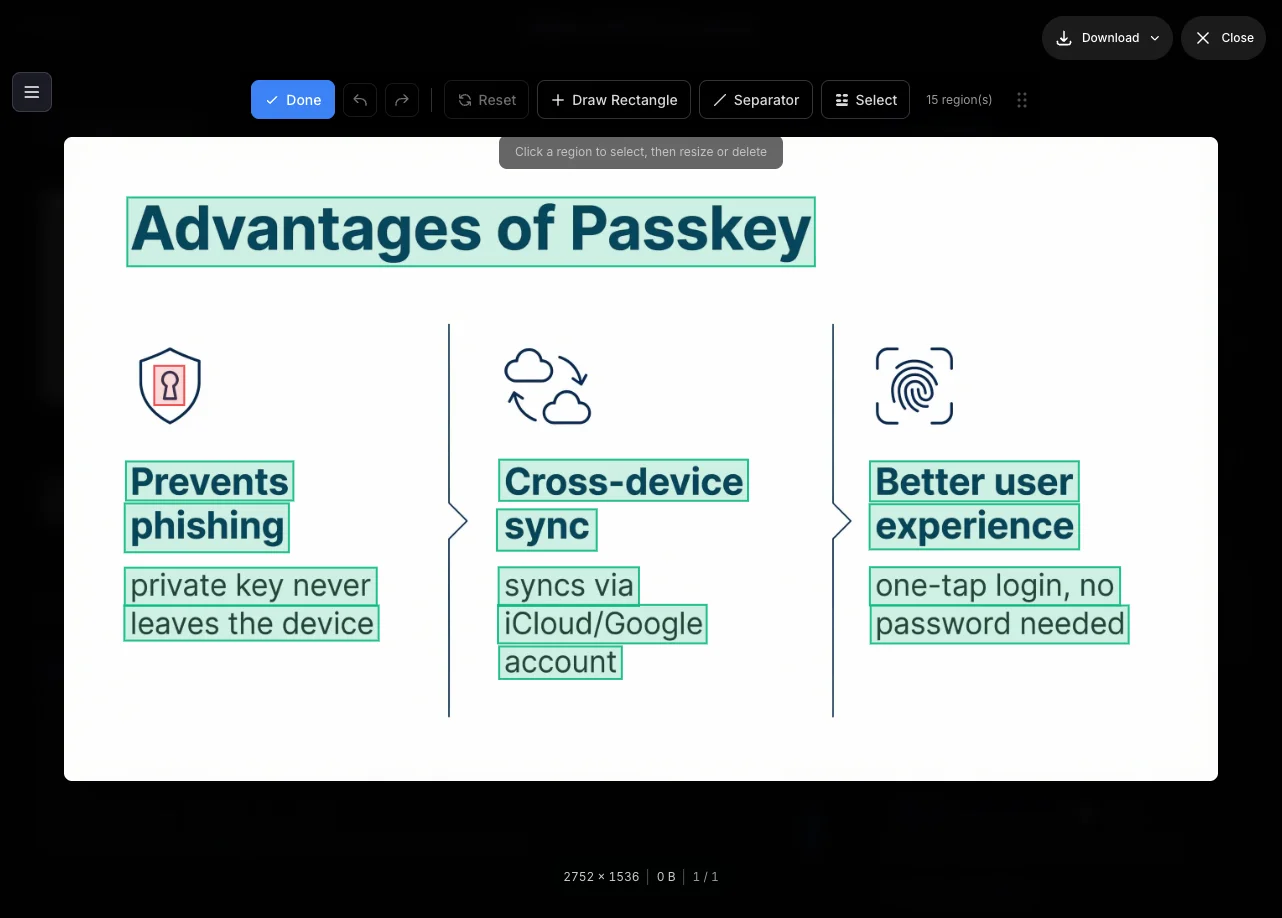
Toolbar
A toolbar appears at the top in edit mode with these tools:
| Tool | Shortcut | Description |
|---|---|---|
| Draw Rectangle | D | Drag to draw a new text region |
| Trapezoid | T | Convert selected region to a quadrilateral with adjustable vertices (appears when a region is selected) |
| Separator | S | Click two points to draw a separator line that prevents adjacent regions from merging |
| Select | V | Drag to select regions for batch deletion |
| Undo / Redo | Ctrl+Z / Ctrl+Shift+Z | Undo or redo edit operations |
| Reset | R | Reset all edits to original OCR results |
| Done | - | Save edits and exit edit mode |
Keyboard Shortcuts
Edit mode supports the following keyboard shortcuts for efficient operation:
| Shortcut | Function |
|---|---|
D | Toggle draw rectangle mode |
S | Toggle separator line mode |
V | Toggle selection mode |
T | Toggle trapezoid mode (requires a selected region) |
R | Reset all edits |
Ctrl+Z / Cmd+Z | Undo |
Ctrl+Shift+Z / Cmd+Shift+Z | Redo |
Escape | Cancel current operation or exit mode |
Delete / Backspace | Delete selected separator line |
Quick Switching
Use keyboard shortcuts to quickly switch between different tools without moving the mouse to click toolbar buttons.
Selecting and Adjusting Regions
Click any text region to select it. Once selected, you can:
- Drag corners: Resize the region
- Click center ✕: Delete the region
Deleting Failed Recognition Regions
If a region failed recognition (e.g., an icon was mistakenly detected as text), it's recommended to delete it. Once deleted, that region won't go through Inpaint processing, preserving the original background image.
Trapezoid Mode (Slanted Text)
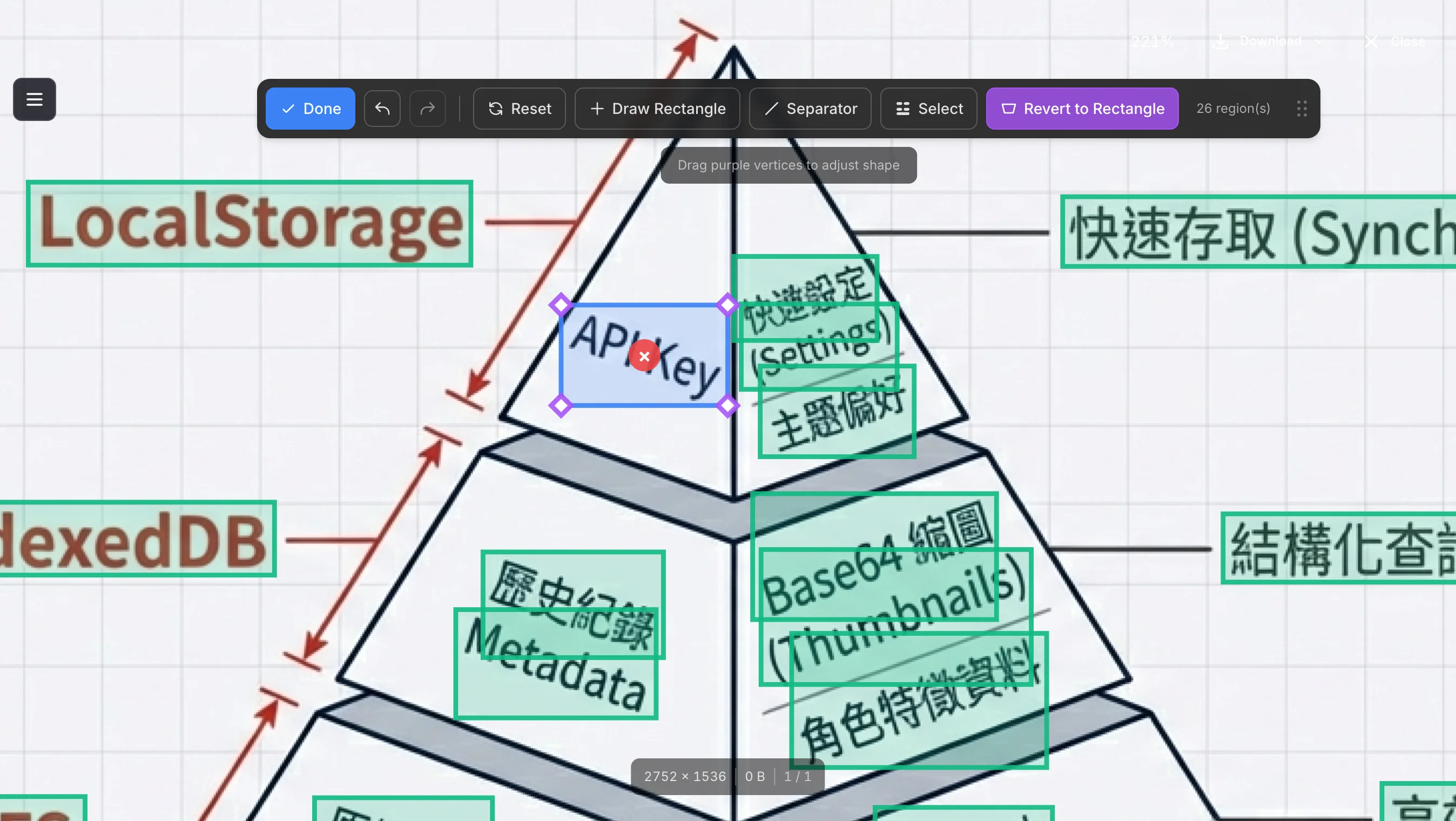
When your slides contain slanted or angled text, rectangular regions cannot accurately frame them. Use "Trapezoid Mode" to convert a region into a quadrilateral with freely adjustable vertices.
When to use:
- Text arranged along diagonal lines
- Text tilted due to perspective angles
- Artistic or decorative text layouts
How to use:
- Click any text region to select it (a blue border will appear)
- Once selected, the "Trapezoid" button appears in the toolbar (trapezoid-shaped icon)
- Click the "Trapezoid" button to convert the region from a rectangle to a quadrilateral
- The blue circular corner handles become purple diamond handles
- Drag the purple handles to adjust each vertex position, fitting the region to the slanted text
- Click the "Revert to Rectangle" button to restore the region back to a rectangle
Shape Restriction
The system automatically validates that the quadrilateral is valid (no self-intersection). If dragging a vertex causes edges to cross, the system will automatically revert to the position before dragging.
PPTX Export Behavior:
- Trapezoid regions automatically calculate rotation angle based on their slant
- Text boxes will be correctly rotated, maintaining visual consistency with the original slide
- Font size is calculated using the actual trapezoid height (not the bounding box), ensuring correct proportions
Real Example:
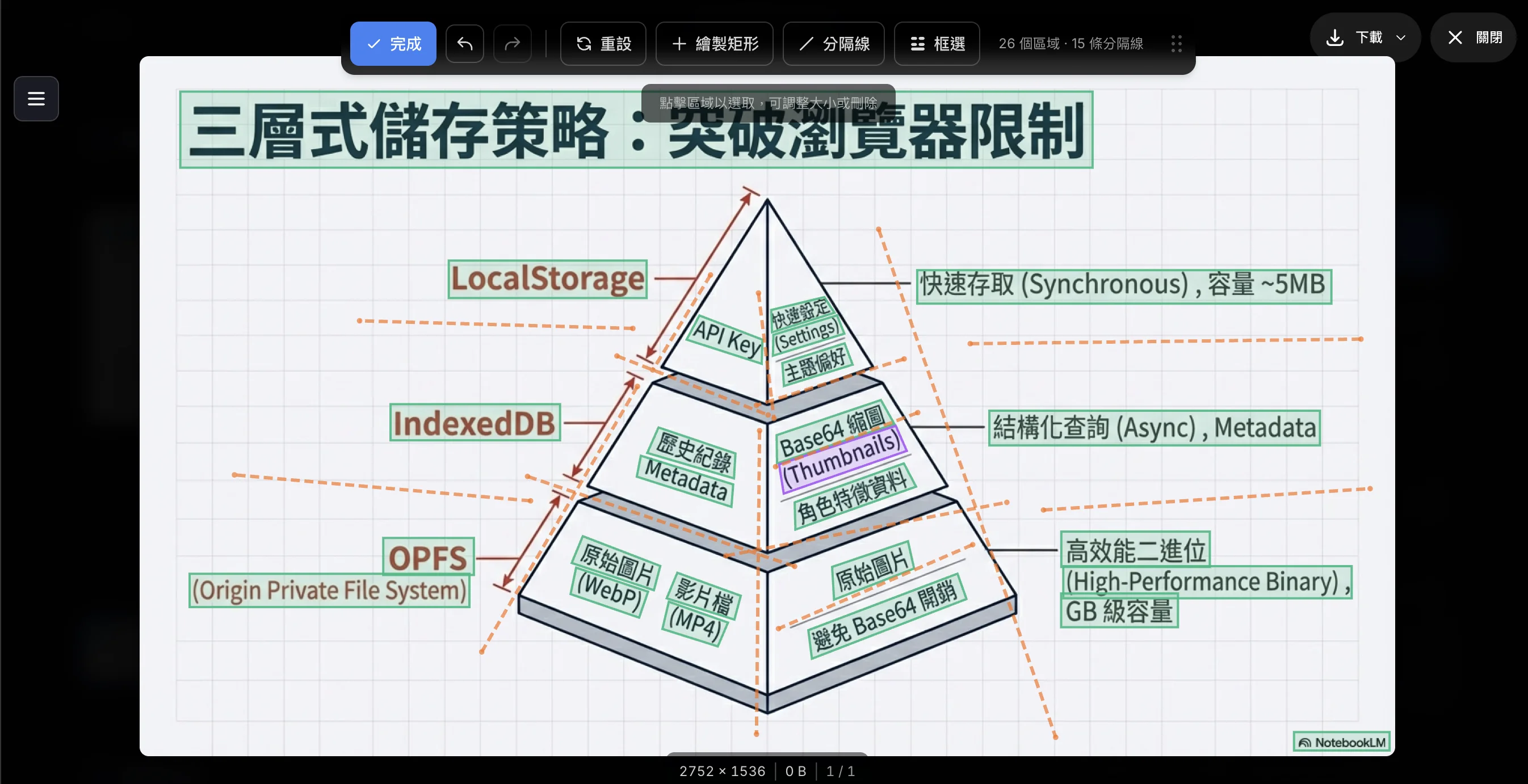
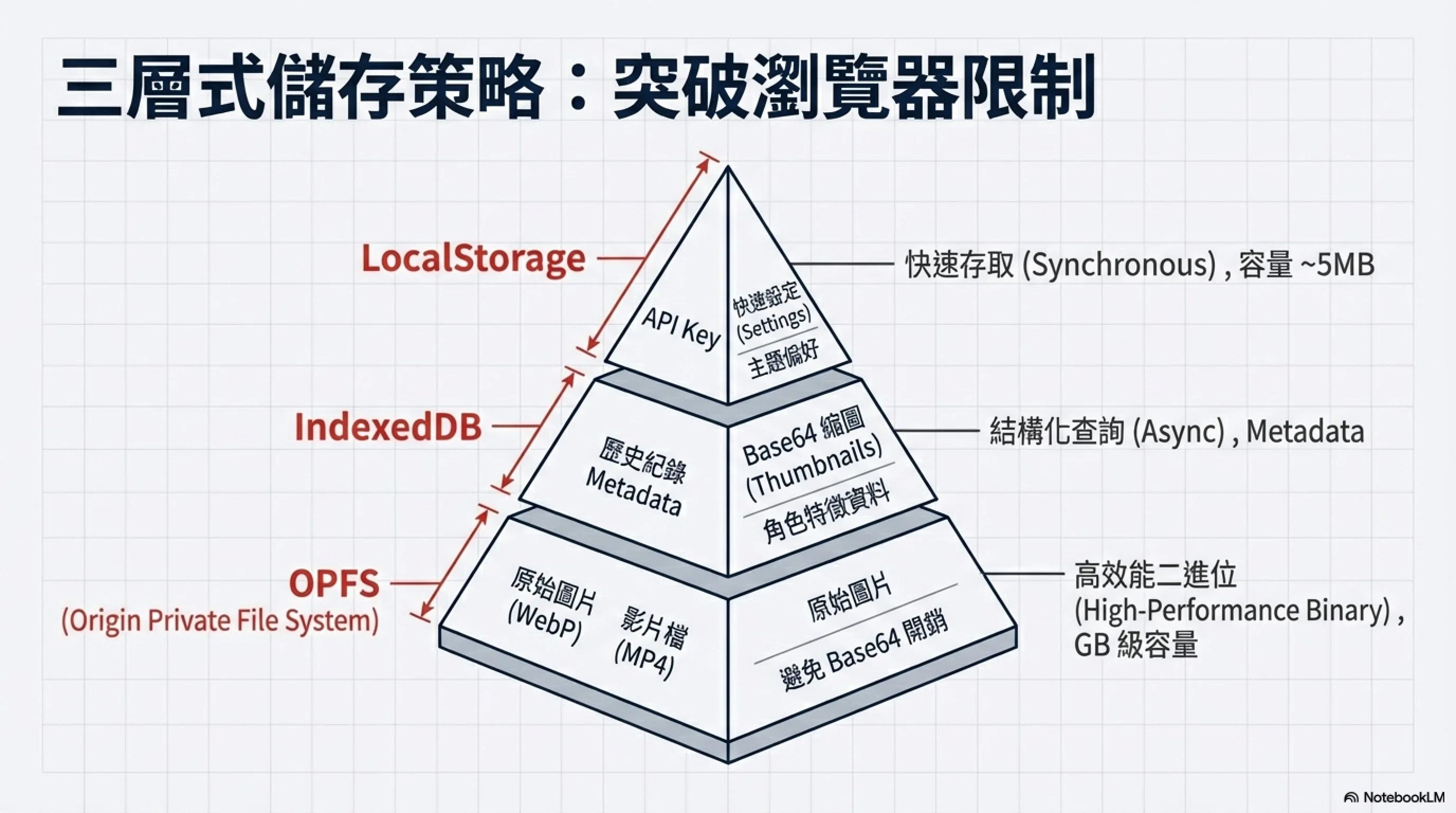
The image below shows a complete editing case. In this pyramid diagram, slanted text like "(Thumbnails)" couldn't be detected correctly by OCR, so we:
- Manually drew a rectangular region to frame the text
- Used trapezoid mode to adjust the region shape to fit the slanted text
- Used separator lines to prevent adjacent regions from being incorrectly merged
Iteration is Normal
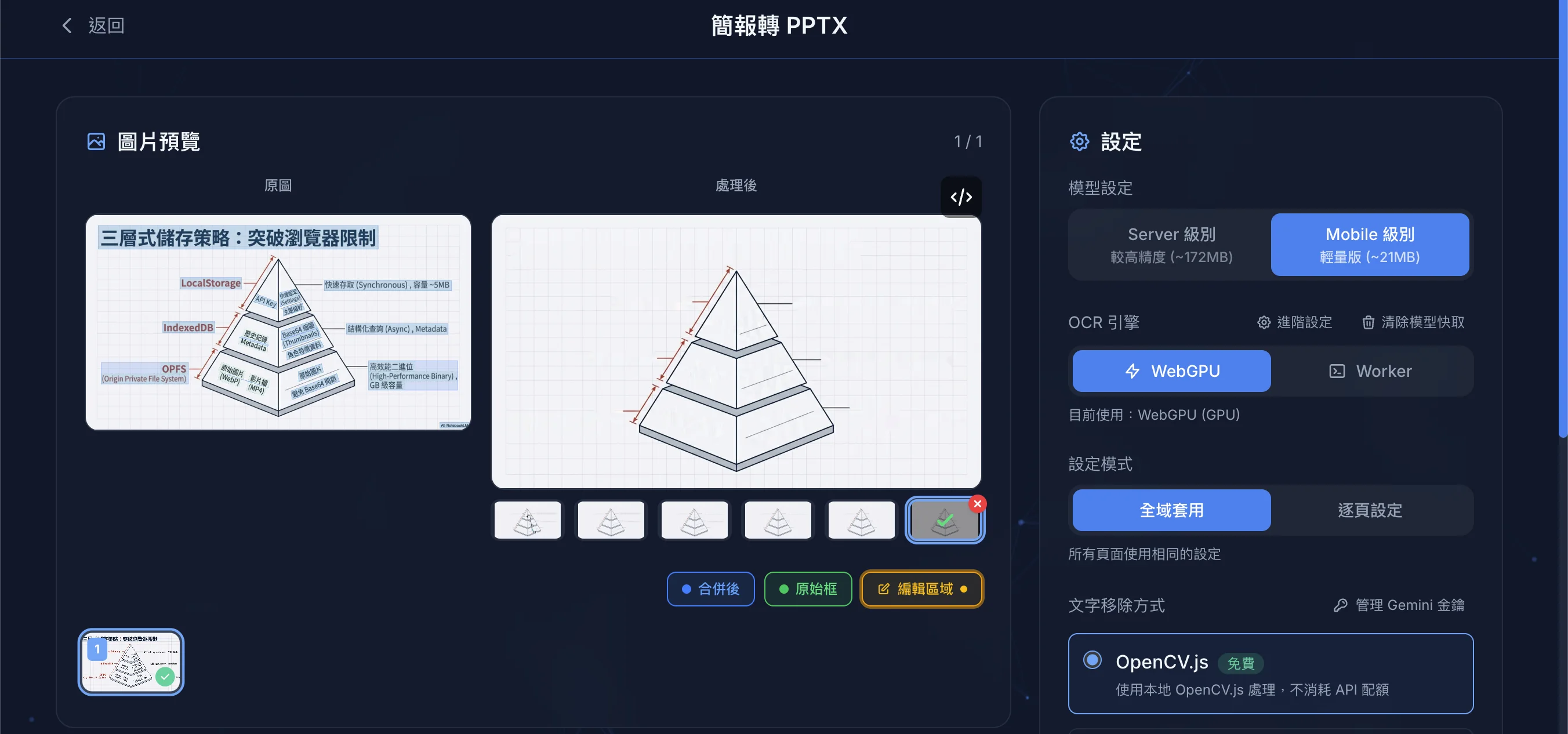
Complex slides may require multiple adjustments to achieve ideal results. As shown below, multiple thumbnails appear beneath the processed version, representing different inpainting attempts. You can click different versions to compare results.
Separator Lines
During layout analysis, nearby text regions are automatically merged into a single text block (which becomes one text box in the PPTX output). Separator lines prevent this automatic merging—regions on opposite sides of a separator will become separate text boxes.
When to use:
- When two unrelated text blocks are incorrectly merged into one
- When a title and body text should be separate text boxes
How to use:
- Select the "Separator" tool
- Click the first point
- Click the second point to complete the line
Regions on either side of the separator line will be output as separate text boxes in the PPTX file.
Sidebar
Click items in the right sidebar's region list to quickly locate and select the corresponding text region. This is particularly useful when dealing with many text blocks.
Batch Deletion
Use the "Select" tool to select multiple regions at once:
- Select the "Select" tool
- Drag to select regions to delete
- Click ✓ to confirm deletion
Export Options
PPTX Settings
| Option | Description |
|---|---|
| Line Height Ratio | Adjust text line spacing |
| Min Font Size | Limit minimum font size |
| Max Font Size | Limit maximum font size |
Export Result Preview
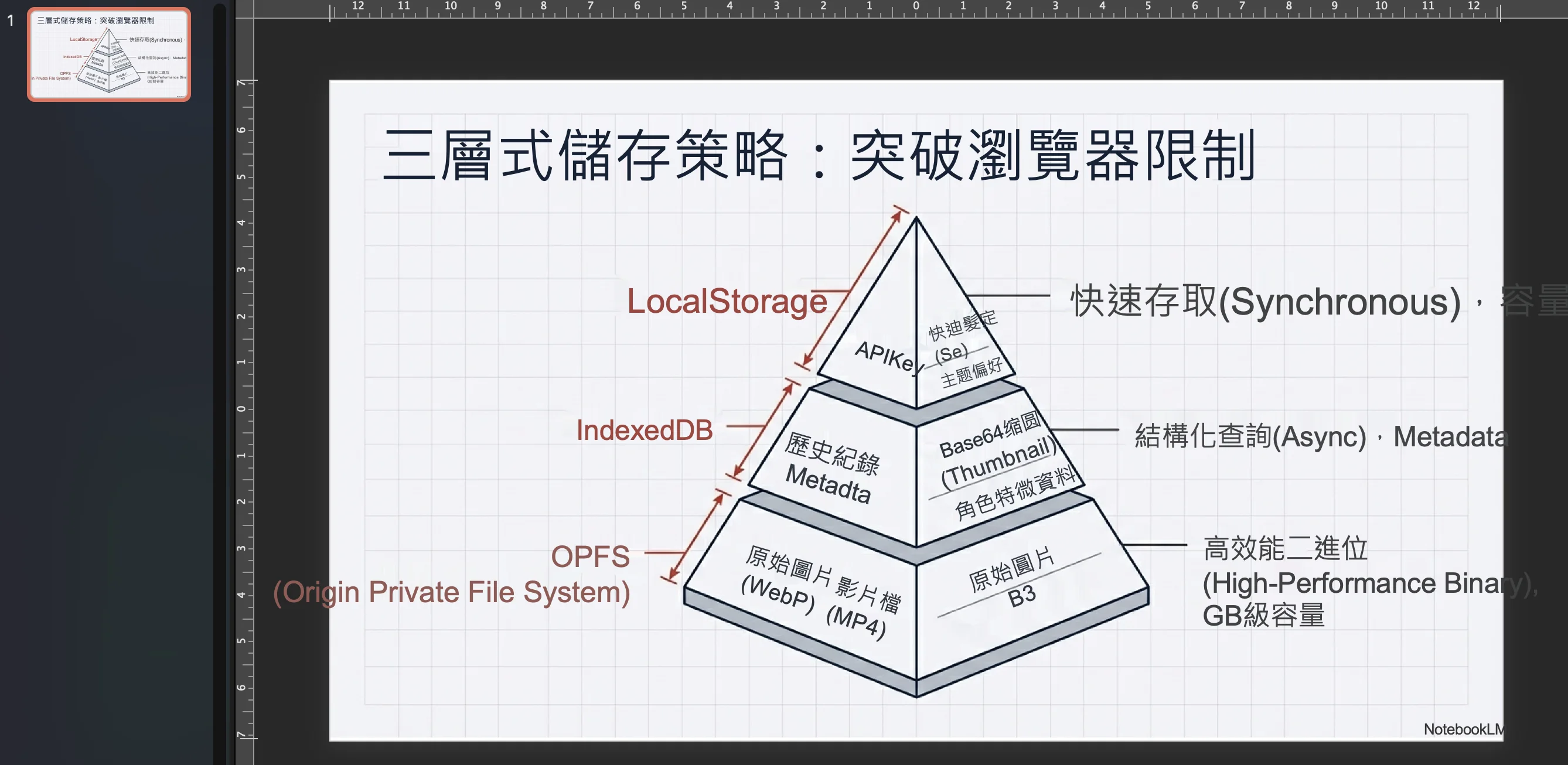
The image below shows how the exported PPTX file appears in PowerPoint:
- Trapezoid region text boxes are correctly rotated, aligned with the original slanted text
- All text boxes are editable and can be modified directly
- The background image has the original text removed, showing a clean background
Inpaint Before/After Comparison:
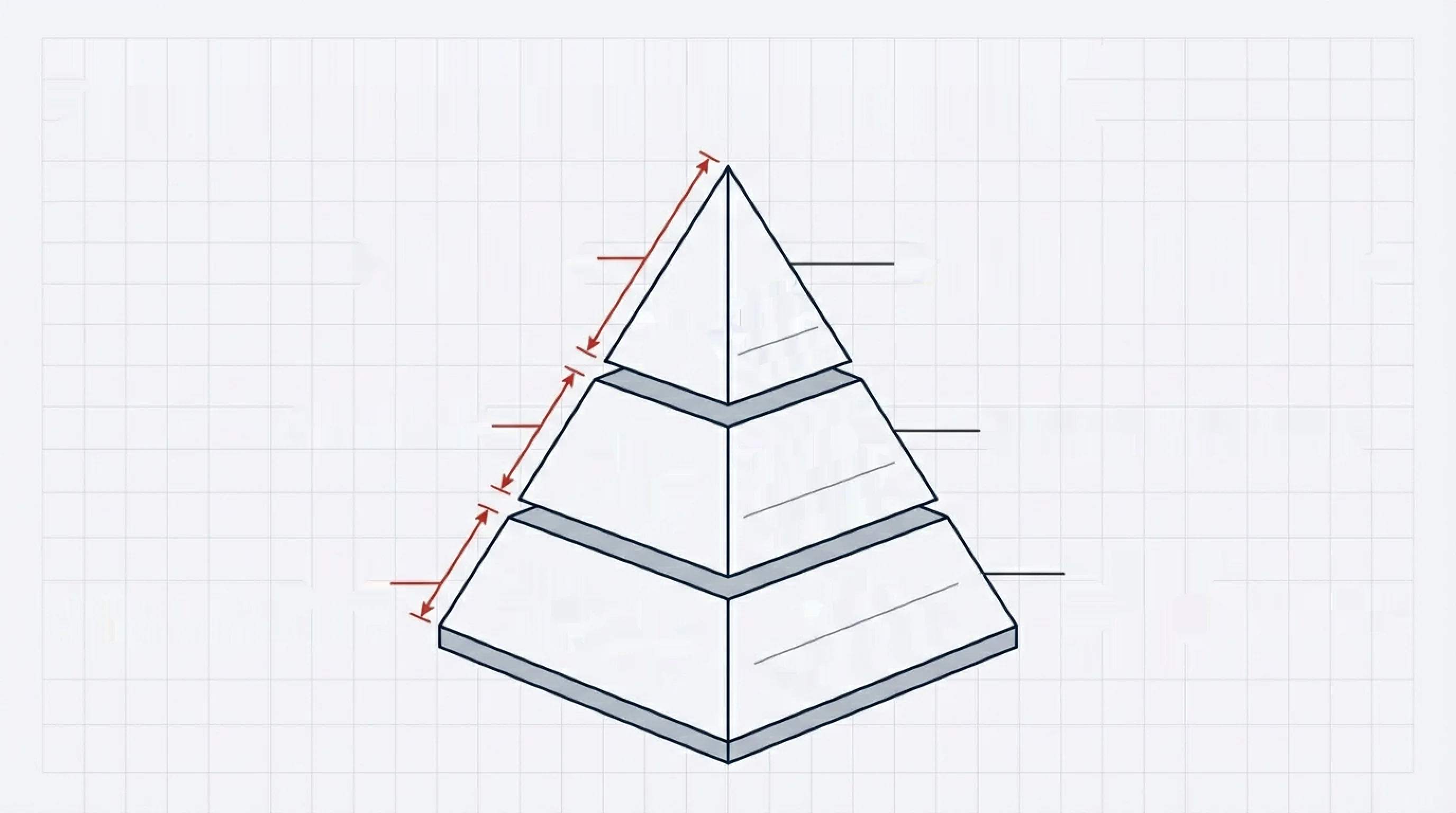
The images below show the inpaint processing effect for trapezoid regions. Left is before processing (original image), right is after processing (text removed):
| Before | After |
|---|---|
 |  |
Supported Formats
- Input: PDF, PNG, JPG, WebP
- Output: PPTX (compatible with PowerPoint, Google Slides, Keynote)
Notes
- Complex layouts (multi-column, overlapping text) may need manual adjustment
- Handwritten text has lower recognition accuracy
- Special fonts may be replaced with system fonts
Next Steps
- Diagram Generation - Generate new diagrams for presentations
- Image Editing - Edit presentation images