
Generate Mode
Generate is the most basic feature of Mediator, allowing you to create AI images from text descriptions.
Basic Usage
- Select "Generate" mode (default)
- Enter a description in the "Prompt Description" input
- Click the "Generate" button
Generation Options
Quality
Set the output image resolution: 1K, 2K, 4K.
Aspect Ratio
6 common aspect ratios available:
| Ratio | Description | Use Case |
|---|---|---|
| 1:1 | Square | Instagram posts |
| 3:4 | Portrait standard | Portrait photos |
| 4:3 | Landscape standard | General photos |
| 9:16 | Portrait widescreen | Stories, Reels |
| 16:9 | Landscape widescreen | YouTube thumbnails, wallpapers |
| 21:9 | Ultra-wide | Cinematic style |
Style
11 built-in preset styles:
| Style | Description |
|---|---|
| Photorealistic | Real photo quality |
| Watercolor | Watercolor painting effect |
| Oil Painting | Oil painting texture |
| Sketch | Pencil sketch style |
| Pixel Art | Retro game style |
| Anime | Japanese anime style |
| Pixar 3D | Pixar animation style |
| Vintage | Nostalgic style |
| Modern | Modern design style |
| Abstract | Abstract art |
| Minimalist | Simple style |
You can also describe custom styles in your prompt.
Variation Types
7 variation types available to generate different perspectives of the same subject:
- Lighting: Change light direction, intensity
- Angle: Change viewpoint, camera angle
- Color Palette: Change color combinations
- Composition: Change image composition
- Mood: Change overall atmosphere
- Season: Change seasonal background
- Time of Day: Change time (day/night, etc.)
Prompt Tips
Structured Description
Good prompts usually include:
- Subject: What you want to draw
- Environment: Scene, background
- Style: Art style, color tone
- Details: Lighting, perspective, atmosphere
Example: A white Shiba Inu (subject), sitting on grass under a cherry blossom tree (environment),
Japanese watercolor painting style (style), sunlight filtering through the petals, soft warm tones (details)
Interface After Generation
Thinking Process
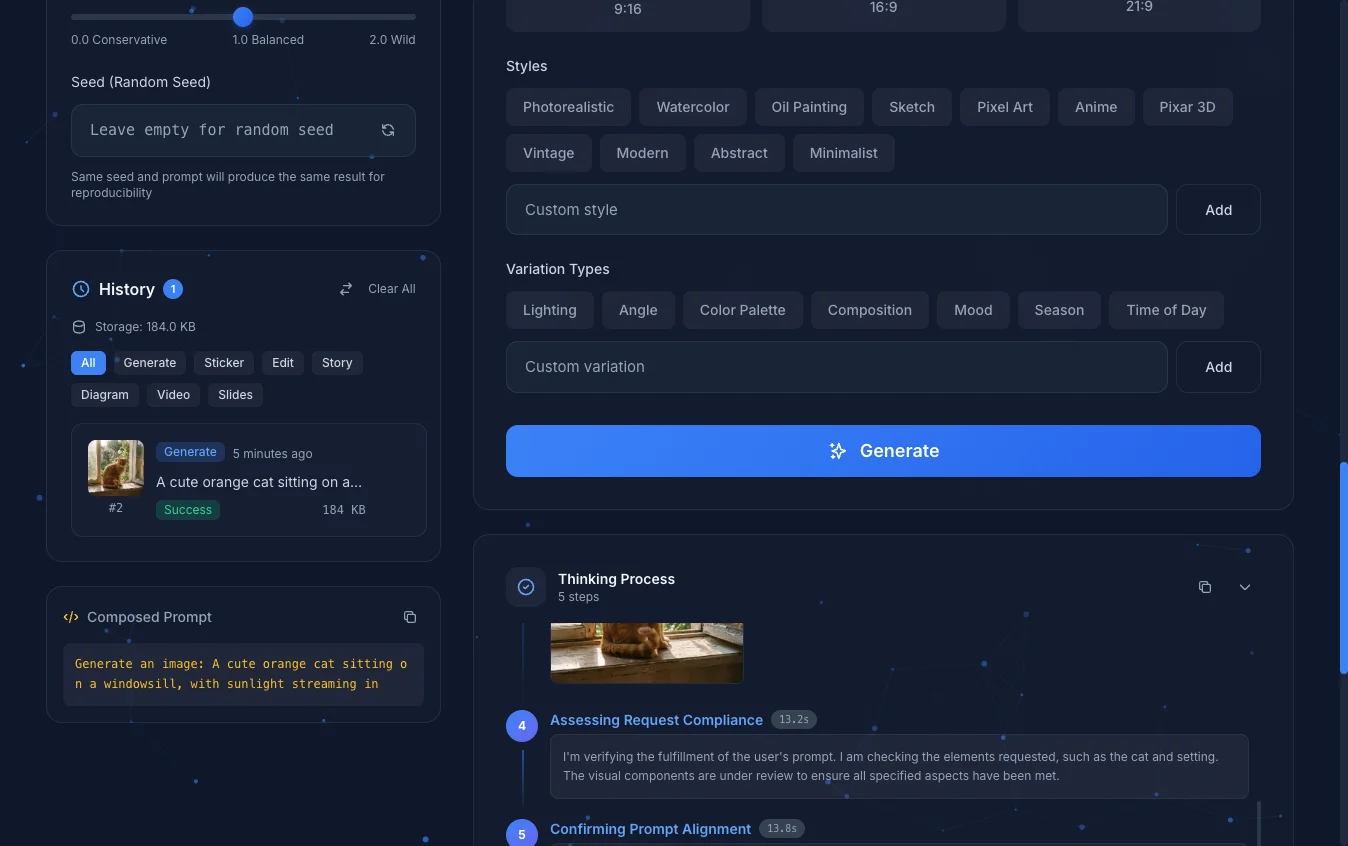
During generation, you'll see a "Thinking Process" progress indicator. This shows the model's thinking and verification steps while generating your image, helping you understand how the AI interprets your prompt and constructs the image.
Generated Results
Once the thinking process completes, the generated images will appear in the results area below.
Lightbox Features
Click on any generated image to open the lightbox viewer, where you can:
- Zoom in or zoom out to examine details
- Download the image in multiple formats:
- Original format
- WebP compressed version (smaller file size)
- Batch download all images:
- ZIP archive
- PDF document
History
The left panel contains a history section that lets you trace back prompts you've used previously. Thumbnails are stored in your browser.
Important Notes
- When clicking a history thumbnail to load a record, any unsaved content in the prompt input or related fields will be overwritten.
- The lightbox opened from history thumbnails only allows downloading compressed formats (WebP), not the original format, because images are converted to WebP to save storage space.
Next Steps
- Sticker Generation - Create sticker sheets
- Image Editing - Edit existing images